
Custom Domains
Serve the Cool Popup pixel from your own domain for full branding control and improved ad-blocker compatibility.
Why use a custom domain?
By default, the Cool Popup pixel loads from dash.coolpopup.com. A custom domain lets you serve it from your own hostname (e.g., popup.yourdomain.com), which provides:
- Brand consistency — All requests stay under your domain
- Ad-blocker compatibility — Some ad blockers flag third-party script domains; a first-party domain avoids this
- Custom landing pages — Set a custom index URL and 404 page for the domain
Adding a custom domain
Navigate to Domains
Go to Domains in the main navigation and click Create domain.
Enter the hostname
Type the subdomain you want to use (e.g., popup.yourdomain.com).
Configure DNS
Add a DNS record pointing your subdomain to the Cool Popup server. The required record type and value are shown on the creation page:
| Record type | Host | Value |
|---|---|---|
| A or CNAME | popup.yourdomain.com | Shown on the domain creation page |
DNS propagation can take up to 48 hours, but usually completes within minutes.
Wait for verification
Cool Popup automatically verifies your DNS configuration. The domain status will progress through:
- Pending — Waiting for DNS verification
- Processing — DNS record found, SSL certificate being issued
- Verified — Ready to use
Domain settings
| Setting | Description |
|---|---|
| Hostname | The subdomain pointed to Cool Popup |
| Custom index URL | Where to redirect visitors who navigate to the domain root |
| Custom 404 URL | Where to redirect visitors who hit a non-existent path |
Using a custom domain in campaigns
Once a domain is verified, you can select it when creating or editing a campaign. The pixel script URL will use your custom domain instead of the default Cool Popup domain.
Managing domains
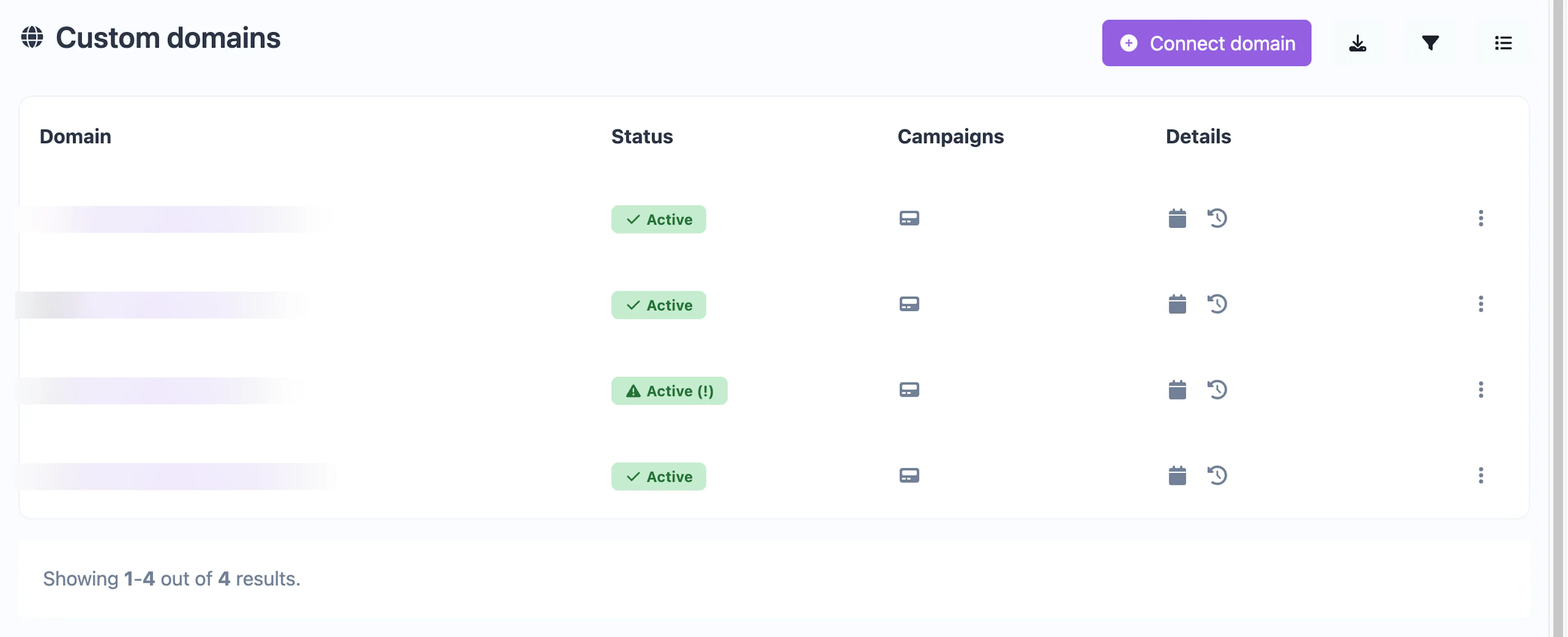
From the Domains page you can:
- View status — See the verification state and associated campaign count for each domain
- Edit — Update the custom index and 404 URLs
- Delete — Remove a domain (campaigns using it will fall back to the default domain)
- Export — Download your domain list as CSV or JSON
- Bulk delete — Remove multiple domains at once
If you remove the DNS record after verification, the domain will eventually fail health checks and stop working. Make sure to keep DNS records in place for as long as you use the domain.