
Audio
Embed an audio player in a popup with playback controls and an optional call-to-action button.
The Audio notification embeds an audio player inside a popup. Use it to play podcasts, music samples, voice messages, or audio announcements alongside an optional CTA button.
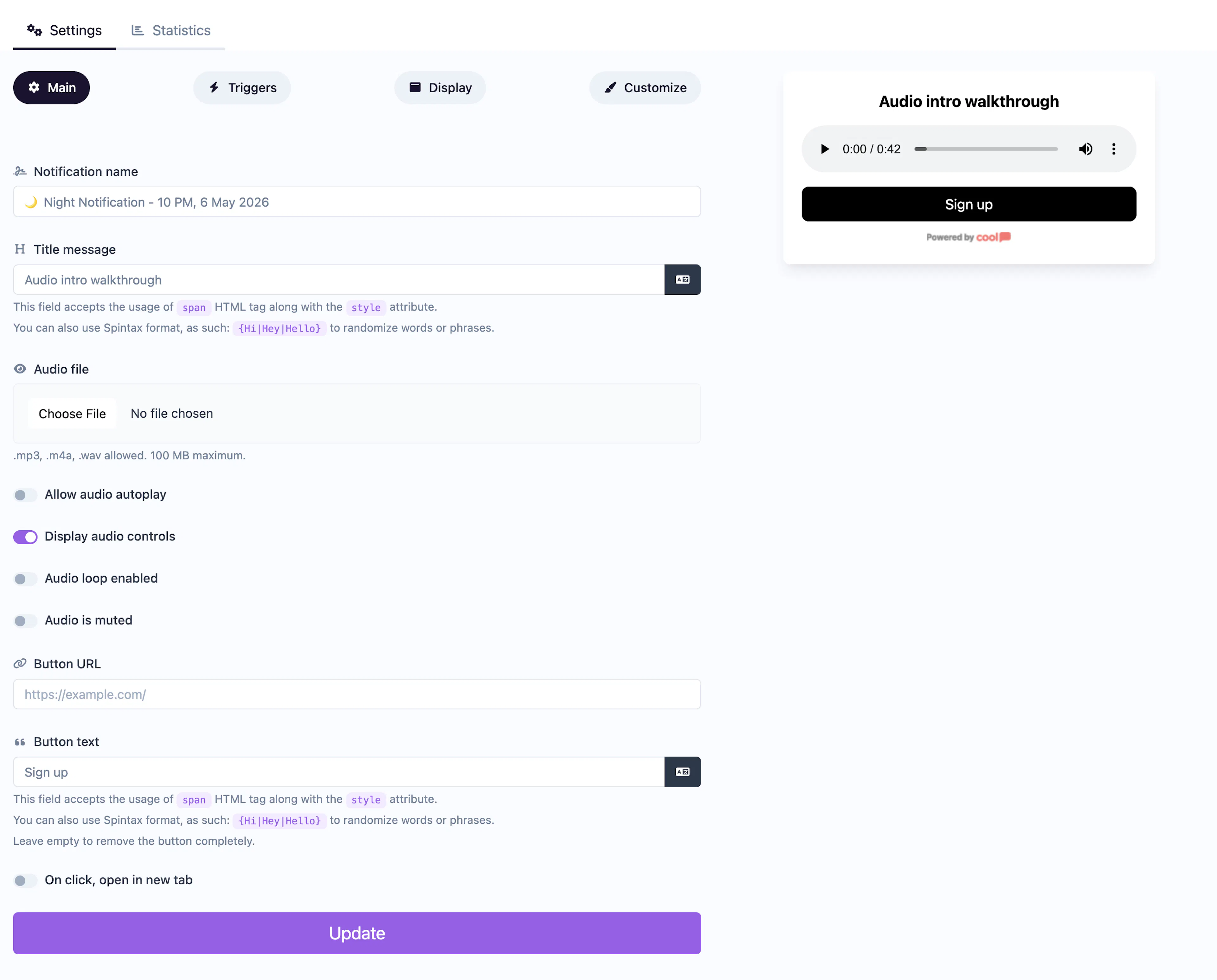
Main tab fields
| Field | Description |
|---|---|
| Notification name | Internal label for your reference. Not shown to visitors. |
| Title message | The headline displayed above the audio player. Supports <span> HTML and Spintax. |
| Audio URL | The URL of the audio file to embed (e.g., an MP3 or WAV file). |
| Autoplay | Toggle to start playing the audio automatically when the notification appears. |
| Controls | Toggle to show audio player controls (play, pause, seek, volume). |
| Loop | Toggle to loop the audio continuously. |
| Muted | Toggle to mute the audio by default. |
| Button text | Label for an optional call-to-action button below the player (e.g., "Listen to Full Episode"). |
| Button URL | Where the CTA button links to. |
| Open in new tab | Toggle for the button URL behavior. |
Customize colors
| Color | Description |
|---|---|
| Title color | Text color of the title. |
| Background color | Background of the popup container. |
| Button background color | Background of the CTA button. |
| Button text color | Text color on the CTA button. |
For shared settings like triggers, display position, animations, and borders, see the Common Editor Settings reference.
Use cases
- Podcast promotion — Let visitors preview an episode without leaving the page.
- Voice announcements — Play a personal welcome or update message.
- Music samples — Preview tracks on a portfolio or store page.
- Audio testimonials — Share recorded customer reviews.
For video content with visuals, use the Video type instead. Most browsers block unmuted autoplay — keep muted enabled if using autoplay.
Was this page helpful?