
Conversions
Show recent conversion activity like purchases or signups to build social proof and urgency.
The Conversions notification displays recent visitor activity — such as purchases, signups, or downloads — as rotating social proof popups. Conversion data can be entered manually or captured automatically using auto data triggers in the Data tab.
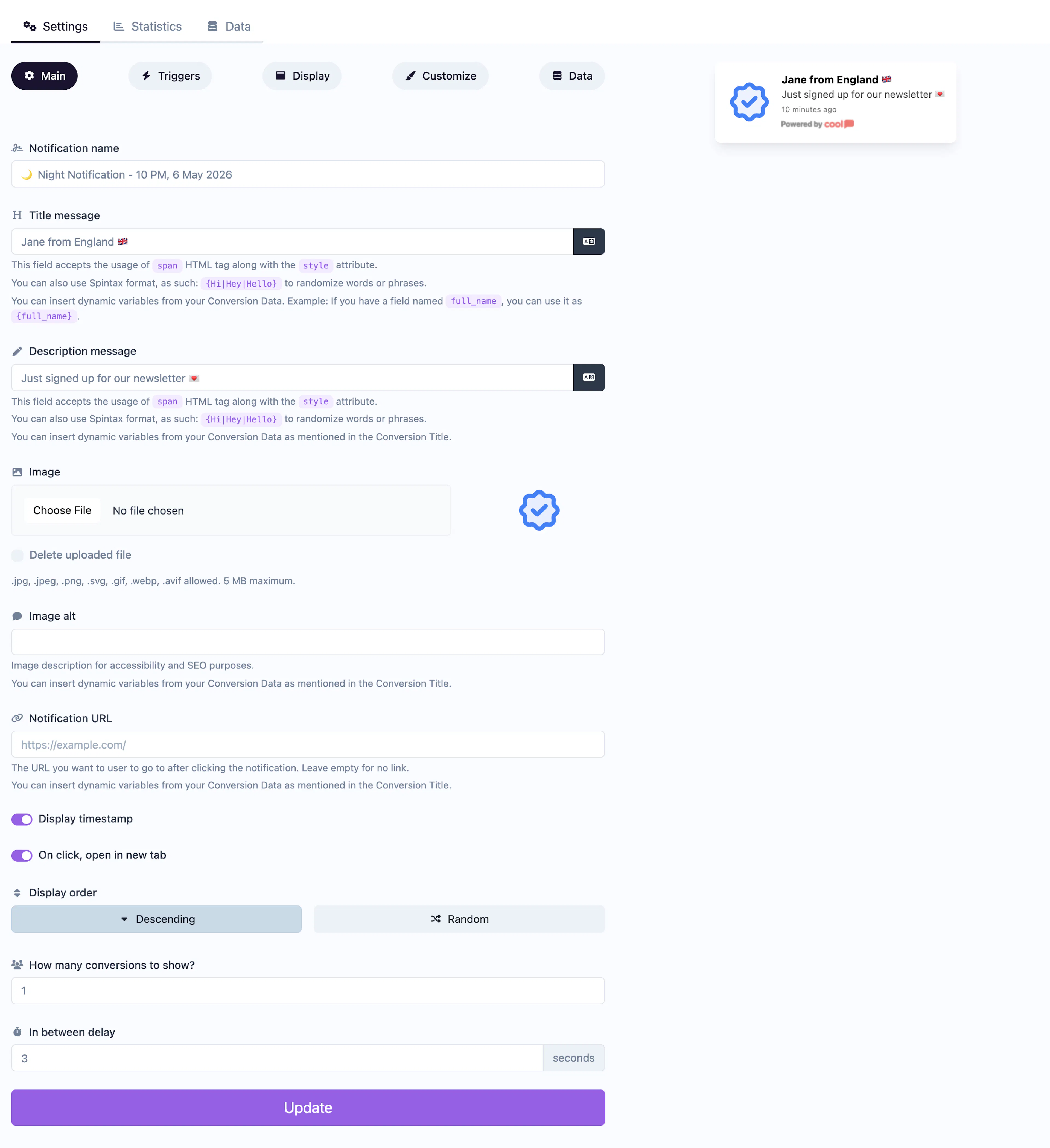
Main tab fields
| Field | Description |
|---|---|
| Notification name | Internal label for your reference. Not shown to visitors. |
| Title message | The headline for each conversion popup. Use the {name} placeholder to insert the converter's name (e.g., "{name} just purchased"). Supports <span> HTML and Spintax. |
| Description message | Supporting text below the title. Same HTML and Spintax support. |
| Image | Optional image displayed alongside the conversion (e.g., product photo). |
| Image alt text | Accessibility text for the image. |
| URL | Click-through link for the notification. |
| Display time | Toggle whether to show a relative timestamp (e.g., "2 hours ago") on each conversion. |
| Open in new tab | Toggle for the URL behavior. |
| Order | Display order for conversions: Descending (newest first) or Random. |
| Conversions count | How many conversions to cycle through per session. |
| In-between delay | Seconds to wait between showing different conversions. |
Data tab
The Data tab contains your conversion entries. You can add entries manually or configure auto data triggers — URL patterns that automatically capture a conversion when a visitor reaches a specific page (e.g., your order confirmation page). Each entry stores the name, location, and timestamp.
Display tab extras
In addition to the standard display settings, Conversions adds:
| Field | Description |
|---|---|
| Minimum activity | The notification won't appear unless the total conversion count meets this threshold. Prevents showing empty or sparse social proof. |
Customize colors
| Color | Description |
|---|---|
| Title color | Text color of the title. |
| Date color | Text color of the relative timestamp. |
| Description color | Text color of the description. |
| Background color | Background of the popup container. |
For shared settings like triggers, display position, animations, and borders, see the Common Editor Settings reference.
Use cases
- E-commerce purchases — "Sarah from New York just bought..." drives purchase urgency.
- Signup notifications — Show that others are registering for your service.
- Download activity — Display recent downloads of your app or lead magnet.
- Booking confirmations — "John just booked a demo" encourages others to follow.
To show an aggregate count instead of individual conversions, use the Conversions Counter type.