
Notification Handlers
Notification handlers forward data collected by your popups to email, Slack, Discord, webhooks, and other destinations.
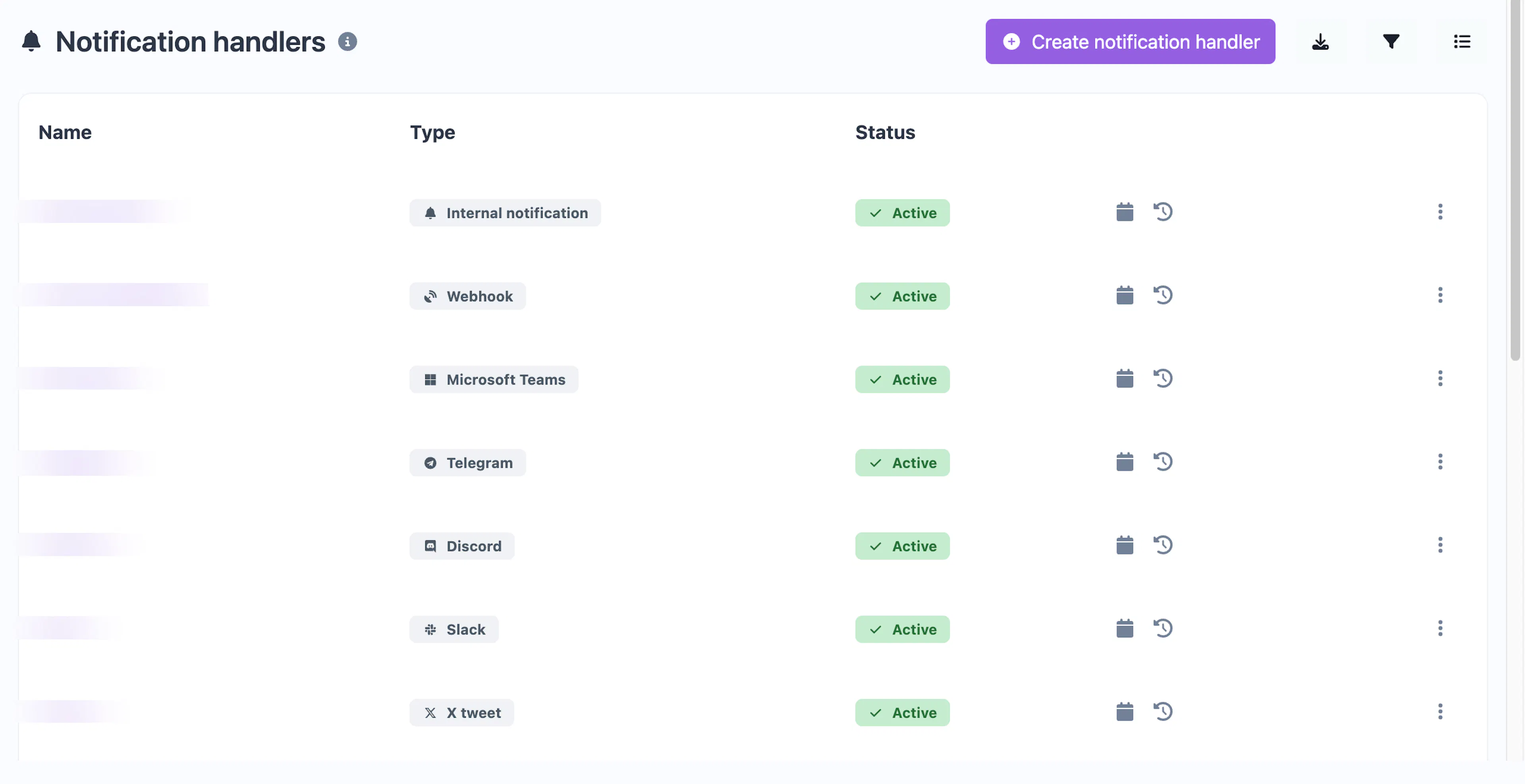
What are notification handlers?
When visitors interact with your notifications — submitting an email, filling out a form, leaving feedback — that data needs to go somewhere. Notification handlers define where the data is sent.
You create handlers independently and then attach them to one or more notifications. A single handler can serve multiple notifications, and a single notification can forward to multiple handlers.
Supported handler types
| Type | Description |
|---|---|
| Send collected data to an email address | |
| Webhook | POST data to any URL as a JSON payload |
| Slack | Send a message to a Slack channel via incoming webhook |
| Discord | Send a message to a Discord channel via webhook |
| Microsoft Teams | Post to a Teams channel via connector webhook |
| Google Chat | Send to a Google Chat space via webhook |
| Telegram | Send to a Telegram chat via bot API |
| Forward via Twilio WhatsApp API | |
| Twilio SMS | Send an SMS notification via Twilio |
| Twilio Call | Trigger a phone call via Twilio |
| X (Twitter) | Post to X using OAuth credentials |
| Push notification | Send a browser push notification to a subscriber |
| Internal notification | Show an in-app notification in the Cool Popup dashboard |
Creating a handler
Navigate to Notification Handlers
Go to Notification Handlers in the main navigation and click Create handler.
Choose the handler type
Select the destination type from the list. Each type has specific fields:
- Email — Enter the recipient email address
- Webhook — Enter the URL that will receive POST requests
- Slack / Discord / Teams / Google Chat — Enter the incoming webhook URL from the respective platform
- Telegram — Enter your bot token and chat ID
- Twilio (SMS / Call / WhatsApp) — Enter your Twilio credentials and recipient phone number
- X (Twitter) — Enter your OAuth consumer key, secret, access token, and access token secret
Name and save
Give the handler a descriptive name (e.g., "Sales team Slack" or "Lead webhook") and save it.
Attaching handlers to notifications
When editing a notification's settings, you'll see a Notification handlers section where you can select which handlers receive data from that notification. Check one or more handlers from your list.
Managing handlers
From the Notification Handlers page you can:
- Search and filter — Find handlers by name, status, or type
- Enable/disable — Toggle handlers on or off without deleting them
- Export — Download your handler list as CSV or JSON
- Bulk delete — Select and remove multiple handlers at once
Disabling a handler temporarily stops data delivery to that destination without removing it from your notifications. Re-enable it to resume delivery.
Plan limits
Your plan determines the maximum number of notification handlers you can create and which handler types are available. Check the Plans & Pricing page for details.